
Pick Your Image Engine in PowerPoint Copilot — MAI Image 2.5 and FLUX.2 Flex Join the Line-up

Image generation in Copilot for PowerPoint just gained a useful layer of control: you now choose which AI model creates the picture for your slide. Instead of a single built-in generator, you can pick from several models — including two new arrivals: Microsoft’s own MAI Image 2.5 and FLUX.2 Flex from German vendor Black Forest Labs. OpenAI’s GPT-Image models are in the mix too, along with an automatic option. The image still appears right on your slide from a prompt; what’s new is that you get to match the engine to the job.



Info Value: Pick the right image model for your task
UseCase Use case: Adding images to PowerPoint slides
Zeit Reading time:
4 minutes
Schwierigkeit Difficulty: Beginner
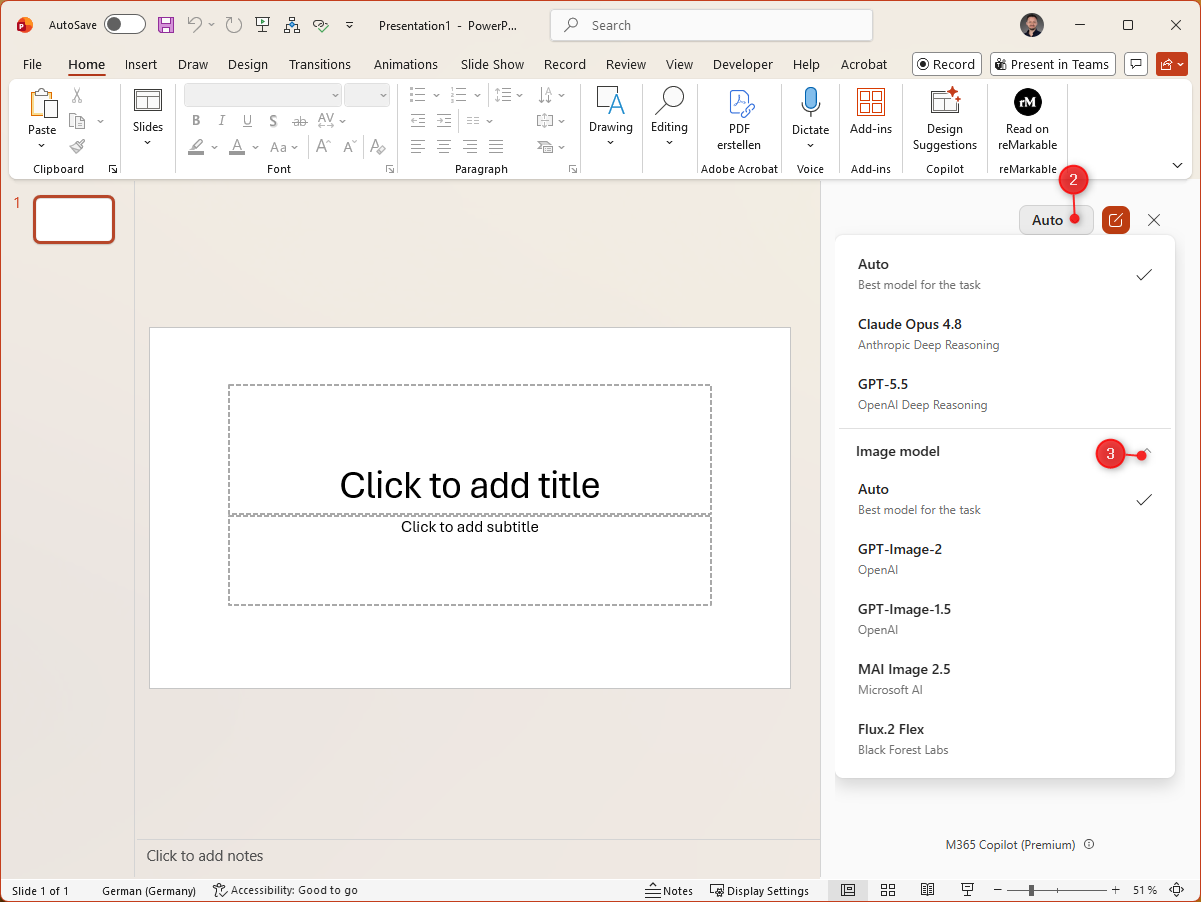
The real change here isn’t any single model — it’s the freedom to choose. In Copilot for PowerPoint, you decide per image which engine does the work, weighing speed, detail and text quality against each other rather than settling for one all-purpose compromise. MAI Image 2.5 is Microsoft’s own image model, live in PowerPoint for generating pictures. It delivers solid all-round quality and sits tightly within Microsoft 365. For high volumes, MAI Image 2.5 Flash offers a faster option.

FLUX.2 Flex comes from Black Forest Labs in Freiburg — the team behind Stable Diffusion — so the picker now includes a model built in Germany. One thing worth being clear about: when you use it through Copilot, where your data is processed is set by Microsoft 365’s terms, not by where the model’s maker is based, so the model’s origin alone doesn’t guarantee EU data processing.

Rounding out the picker are OpenAI’s GPT-Image models (GPT-Image-2 and GPT-Image-1.5), plus an Auto option that lets Copilot choose for you. For most slides, Auto is a sensible starting point; you’ll feel the difference where a specific need points clearly to one model.

Here’s how to choose an image model in Copilot for PowerPoint:

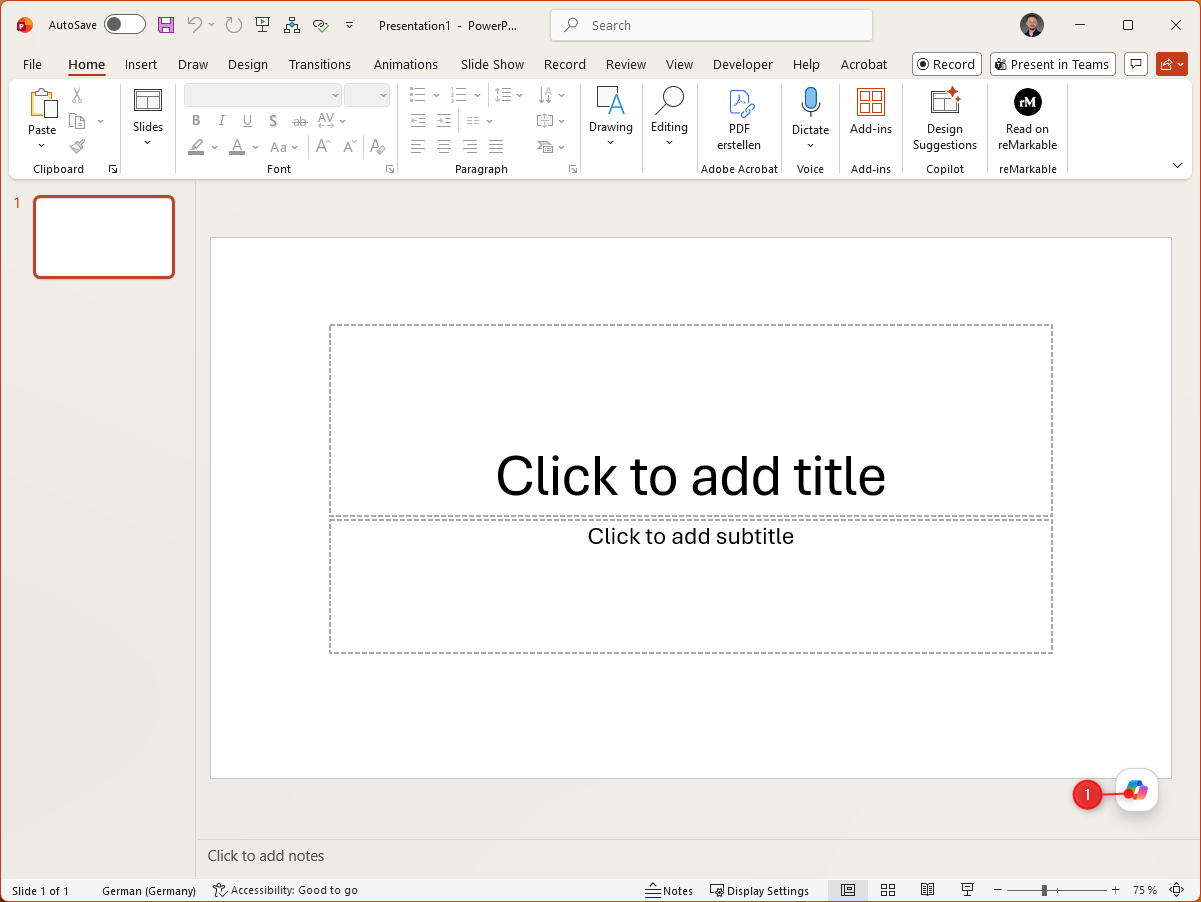
  1. Open Copilot from the Copilot icon on your slide.
  2. Open the model selector at the top and choose your image model: MAI Image 2.5, FLUX.2 Flex, a GPT-Image model or Auto. 
  3. Now ask Copilot to generate an image and describe what you’re after as specifically as you can — style, scene, mood, any text you need. Copilot will use the model you selected. If Copilot follows up with questions — for instance about the style you want — go ahead and answer them.
  4. Review the result, refine your prompt if needed, and drop the image onto your slide. To compare, generate the same subject with a second model.

The rollout is gradual, so the list of available models may still change.

  • Match the model to the task: For Microsoft-adjacent, polished visuals, MAI Image 2.5 is a natural fit; FLUX.2 Flex is worth a look as an alternative. Auto is a good default, but it’s no substitute for a deliberate comparison.
  • Check it against your brand: Make sure generated images fit your corporate design, tone and audience — especially for client-facing decks.
  • Review the content: Watch for off details, misspelled text and odd symbols. Even strong models don’t get every caption right.
  • Rights and sign-off: Clarify internally how AI-generated images may be used. External materials often come with stricter rules than internal drafts.
  • Leave sensitive data out of prompts: Describe the subject, but steer clear of confidential client names, internal project details or unreleased product information.
  • Keep an eye on the rollout: Availability and the model list depend on your licence, platform and tenant, and they shift quickly — the options on offer may still change.
  • Generate the same subject twice: Have two models create the same image and compare them side by side — it’s the quickest way to learn which engine suits your type of slide.
  • Prompt specifically: Spell out the style, the scene and, where it matters, the exact text and where it should sit. The more precise the prompt, the more reliable the result — whichever model you use.
  • Work towards the image in conversation: If no clear prompt comes to mind, or you’re still figuring out the right concept, you don’t have to cram everything into one perfect instruction. Just ask Copilot for help and work your way to a solid concept together, back and forth, which it can then generate for you.

The real step forward in Copilot for PowerPoint isn’t a new image model — it’s the choice: you decide, slide by slide, which engine does the work. MAI Image 2.5 brings Microsoft’s tightly integrated model, FLUX.2 Flex adds a German-built alternative from Freiburg-based Black Forest Labs, and the GPT-Image options and an automatic setting round things out. The practical next step: take one slide, generate the same subject with two models, and let the result decide for you. For anything final, the quality check stays non-negotiable — image details, text, brand fit and sign-off all deserve a proper look rather than a wave-through. And since availability and the model list move quickly, it’s worth checking the picker from time to time.