
If you keep asking Copilot in PowerPoint for the same thing – checking that a deck has a clear core message, trimming slide text, adding a summary slide – you probably type the request out each time or paste it in from a note. Skills are built for exactly that: saved instructions that Copilot applies when you call on them, or of its own accord. Microsoft has shipped a few since the spring, and you can now create your own as well.
You don’t need to write any code. A skill comes down to three fields: a name, a description and the instructions themselves. This article explains what skills are, shows how to create and use one, and why the description matters more than it looks.
 Benefit: Save routine tasks
|
 UseCase: Reviewing and polishing slides
|
 Reading time:
4 min |
 Difficulty: Intermediate
|
Overview
Step by step
Part 1: Create your own skill
- Open a presentation in PowerPoint and start Copilot from the ribbon.

- In the Copilot prompt box, select + and then Choose skills. Scroll to the bottom of the list and select Manage plug-ins & skills.
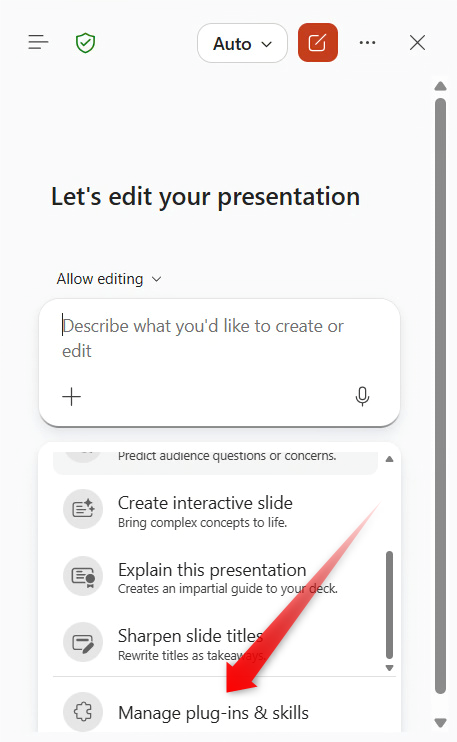
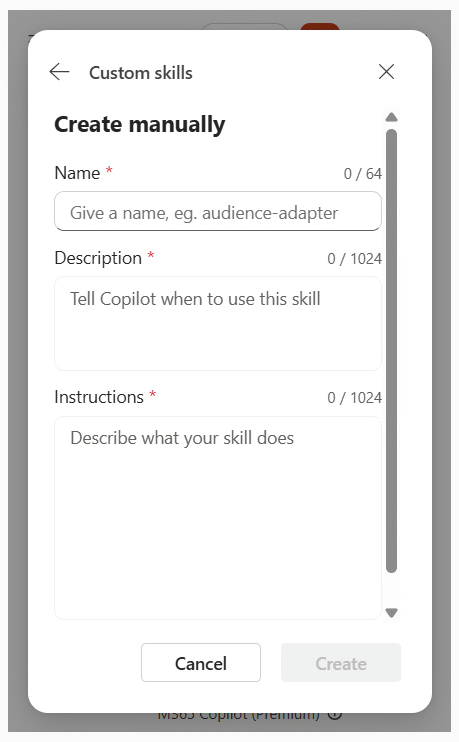
- Select Add skill and choose to create the skill by hand (Create manually).
- Under Name, enter a short label. The form suggests lower case with hyphens, such as audience-adapter. This is the name you will use to call the skill later.
- Under Description, say when Copilot should use the skill. Frame it as a situation, for example “Use this skill when …”.
- Under Instructions, set out what Copilot should do – step by step and as concretely as you can. Then save the skill.
Here is one you can copy as it stands. Name: speaker-notes-short. Description: “Use this skill when I ask for speaker notes for my slides.” Instructions: “Write speaker notes for every slide in the notes pane. Use no more than four bullet points per slide and no more than ten words per bullet. No full sentences, and don’t repeat what is on the slide – note what I should add out loud, most important point first. Don’t overwrite existing notes; add yours below them.”
Part 2: Use and manage your skill
- In the Copilot pane, select + and Choose skills, then click your skill. You can also type @ in the prompt box, followed by the skill’s name.
- If needed, say what the skill should apply to – “only slides 3 to 8”, for instance – and send the request.
- To edit, switch off or delete a skill, open the … menu in the top right corner of the Copilot pane and select Manage plug-ins & skills.