Copilot in PowerPoint remembers your routines – with skills you create yourself

If you keep asking Copilot in PowerPoint for the same thing – checking that a deck has a clear core message, trimming slide text, adding a summary slide – you probably type the request out each time or paste it in from a note. Skills are built for exactly that: saved instructions that Copilot applies when you call on them, or of its own accord. Microsoft has shipped a few since the spring, and you can now create your own as well.

You don’t need to write any code. A skill comes down to three fields: a name, a description and the instructions themselves. This article explains what skills are, shows how to create and use one, and why the description matters more than it looks.

 

Info Benefit: Save routine tasks
UseCase UseCase: Reviewing and polishing slides
Zeit Reading time:
4 min
Schwierigkeit Difficulty: Intermediate

At heart, a skill is a set of instructions for one specific, recurring task. Microsoft built the first three into Copilot in PowerPoint in May: Visualize this slide turns a text-heavy slide into a designed one, Prepare for questions looks for weak spots in your argument and predicts what the audience might ask, and a third skill works on the structure and storyline of the whole deck.

Custom skills follow the same principle. Each one has a short name, a description of when Copilot should use it, and the instructions. You can call a skill up yourself, but according to Microsoft, Copilot will also reach for it unprompted when your request matches the description. That is what sets a skill apart from a prompt saved in a note: it lives where you work, and Copilot knows what it is for.

Custom skills are available in PowerPoint for Windows, for Mac and on the web. Microsoft rolled them out between late July and mid-August, and they are on by default, so there is nothing to request from IT. Your skills are stored in your own OneDrive: they belong to you, and nobody else can see them.

Part 1: Create your own skill

  1. Open a presentation in PowerPoint and start Copilot from the ribbon.

  1. In the Copilot prompt box, select + and then Choose skills. Scroll to the bottom of the list and select Manage plug-ins & skills.
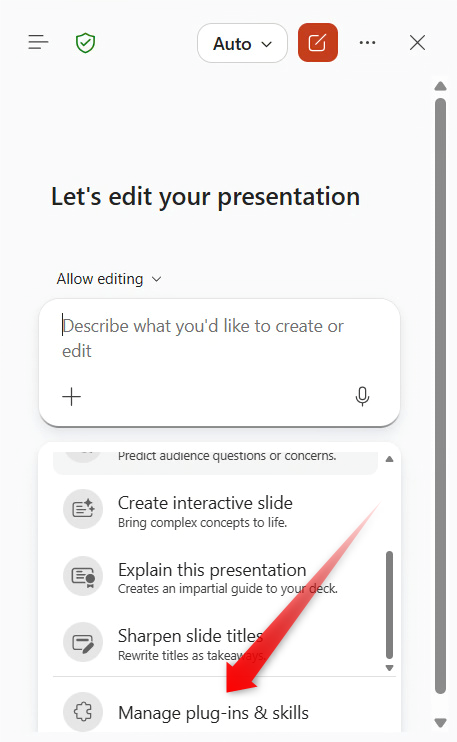
  1. Select Add skill and choose to create the skill by hand (Create manually).
  2. Under Name, enter a short label. The form suggests lower case with hyphens, such as audience-adapter. This is the name you will use to call the skill later.
  3. Under Description, say when Copilot should use the skill. Frame it as a situation, for example “Use this skill when …”.
  4. Under Instructions, set out what Copilot should do – step by step and as concretely as you can. Then save the skill.
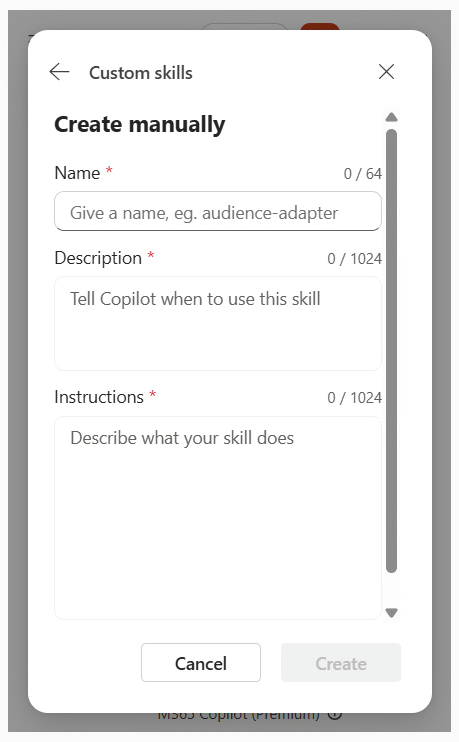
Here is one you can copy as it stands. Name: speaker-notes-short. Description: “Use this skill when I ask for speaker notes for my slides.” Instructions: “Write speaker notes for every slide in the notes pane. Use no more than four bullet points per slide and no more than ten words per bullet. No full sentences, and don’t repeat what is on the slide – note what I should add out loud, most important point first. Don’t overwrite existing notes; add yours below them.”

Part 2: Use and manage your skill

  1. In the Copilot pane, select + and Choose skills, then click your skill. You can also type @ in the prompt box, followed by the skill’s name.
  2. If needed, say what the skill should apply to – “only slides 3 to 8”, for instance – and send the request.
  3. To edit, switch off or delete a skill, open the … menu in the top right corner of the Copilot pane and select Manage plug-ins & skills.
  • Skills are personal: a skill you create lives in your OneDrive, and only you can see it. Microsoft doesn’t yet offer a way to roll one out centrally to a whole team, so anyone who wants the same skill adds it themselves (see Tips).
  • The description does real work: Copilot can use a skill that is switched on without you calling it, as long as your request matches the description. If the description is too broad, the skill may step in where you don’t want it. In that case, tighten the wording rather than switching the skill off: a skill that is switched off disappears from the list as well.
  • Space is limited: the form allows 1,024 characters for the instructions. That is plenty for one well-defined task but not for a whole manual, and a good reason to give each skill a single job.
  • No images in a skill: a skill can contain text and structured data, but not images or PDFs. You can’t attach your logo or a sample slide, so any design rules have to be described in words.
  • Turn your best prompt into a skill: once you are typing the same request for the third time, it is a candidate. Use the wording that has worked best so far as the instructions.
  • Share skills with colleagues: Add skill also lets you upload a finished skill instead of creating one by hand. Your own skills are saved as files in a Skills folder in your OneDrive, and you can share them from there like any other file. That way a whole team can use the same skill, with each person uploading it once into their own Copilot.
  • Try another model before you rewrite: how well a skill performs also depends on the AI model running it, and one hands-on test found clear differences with the same deck and the same skill. If a result disappoints, run it again with a different model from the picker in the top right corner of the Copilot pane.

A skill is ultimately a well-written prompt with a fixed home and a clear purpose: it sits where you work, and Copilot knows when it is needed. How useful it turns out to be depends less on the technology than on two fields – the description, which says when the skill applies, and the instructions, which say what it should do. If there is a task you keep explaining to Copilot in the same way, it is worth writing it down properly once.