

Microsoft 365 Copilot Chat: Open PDFs right inside the chat

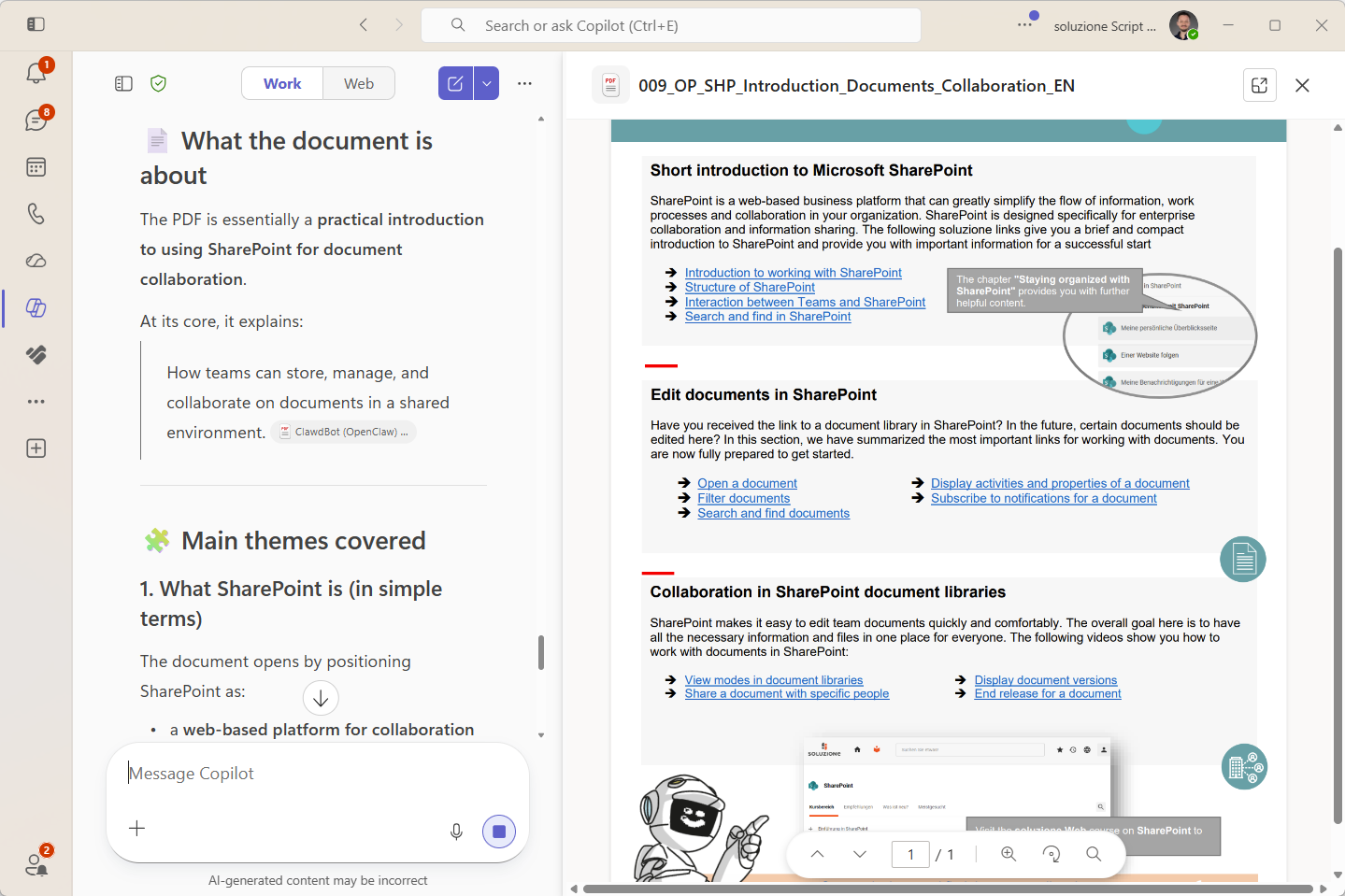
PDFs can now be opened directly in Microsoft 365 Copilot Chat. Instead of breaking the flow by moving the document into a separate viewer or browser tab, the PDF stays close to the conversation. For anyone who regularly works through policies, offers, contracts or reports with Copilot, this makes document review noticeably smoother. The practical value is simple: view the document, keep the context and ask follow-up questions without switching apps. We have summarised what is already known, what our first tests showed and what you should keep in mind when getting started.

 

Info Value: Review PDFs without switching apps
Use case Use case: Discuss and review PDFs with Copilot
Time Reading time:
3 minutes
Difficulty Difficulty: Beginner

According to Microsoft release notes and external changelog entries, the feature is intended for Microsoft 365 Copilot Chat on Windows, Mac and the web. We would classify it as a small but very practical quality-of-life improvement: the PDF content stays closer to the active conversation, which is especially helpful when asking follow-up questions about specific passages. It does not replace checking the source document yourself, but it makes that check much easier.

  1. Open Microsoft 365 Copilot Chat.
  2. Click a PDF link or PDF attachment in the chat. The file opens directly inside the Copilot experience.
  3. Then ask Copilot about the open PDF, for example for a summary, key passages or action points.

  • Check permissions: The feature opens PDFs in the context of Microsoft 365 Copilot Chat. Access and visibility still depend on which files you are allowed to open in your working environment.
  • Verify important content: Especially with longer PDFs, key passages should still be checked manually. The direct view helps you quickly compare the document passage with Copilot’s answer.
  • Protected PDFs: In our tests, password-protected PDFs could be opened after entering the password in the Copilot app, but Copilot could not answer content-related questions about them. The workaround: create an unprotected copy of the file and open that copy in Copilot. Important: only do this if the file does not contain sensitive – for example personal – data.
  • Use chat and PDF in parallel: Ask a follow-up question about a specific passage and check the passage directly in the open PDF – especially useful for figures, deadlines and clauses.
  • Also works with scanned PDFs: Even with PDFs that do not contain selectable text, Copilot can answer questions about the content. This makes it quicker to check scanned contracts, forms or meeting minutes without having to search through them manually first.

Our impression after the first tests: opening PDFs directly in Microsoft 365 Copilot Chat is perhaps not a headline-grabbing update, but it does make everyday document work noticeably smoother. The biggest value appears when the document and the chat answer can be used directly alongside each other: check a passage, ask a follow-up question, compare the result – including with scanned PDFs that have no selectable text. This is particularly useful for policies, contracts, forms or longer reports where individual passages need to be checked quickly. The usual caveats still apply: permissions, file protection and sensitive content need to be handled deliberately. Our suggestion: test the feature with two or three typical PDFs from your working day – ideally a normal text PDF, a scanned document and a longer report. You will quickly see where the new view really saves time.