

Scheduled prompts in Microsoft 365 Copilot already take the repetition out of routine tasks — and now you can edit existing ones directly instead of setting them up from scratch. For weekly reports, daily briefings, or status checks, that means adjusting the prompt, shifting the time window, changing the frequency, or toggling notifications without losing what you’ve already built. Here’s how it works and where it makes the biggest difference.
 Value: Flexible routine management
|
 Use Case: Reports, briefings
|
 Read time:
3 minutes |
 Difficulty: Beginner
|
General Overview
How To
- Open Copilot Chat in your browser at microsoft365.com/chat, or via Microsoft Teams or Outlook.
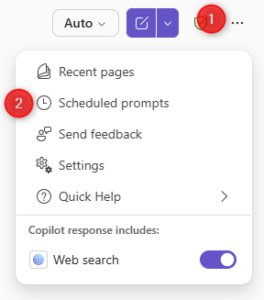
- Click … (Copilot chats and more) in the top right and select Scheduled prompts.
- Select an existing entry and click Edit schedule.
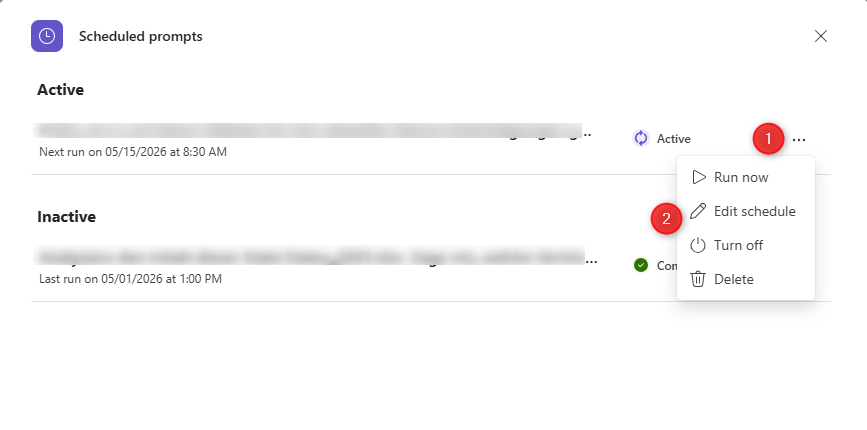
- Update the prompt text itself, or adjust when and how often it runs. You can also enable or disable email notifications for this prompt here.

- Confirm with Update. Additional options including Pause and Delete are also available from this view.