One click, one draft: Office files from Copilot Notebooks

Gathering material in a notebook is rarely the goal in itself. Sooner or later you want something out of it: a write-up, an analysis, a slide deck. Copilot Notebooks now takes that step for you, building a Word document, an Excel spreadsheet or a PowerPoint presentation from the references you’ve collected. What stands out is how little you do to start it — and how little you get to steer. We put all three formats through their paces and set out what comes back, and what determines whether it’s any good.

 

Info Value: Draft in one click
UseCase UseCase: Writing up research
Time Reading time: 4 minutes
Difficulty Difficulty: Beginner

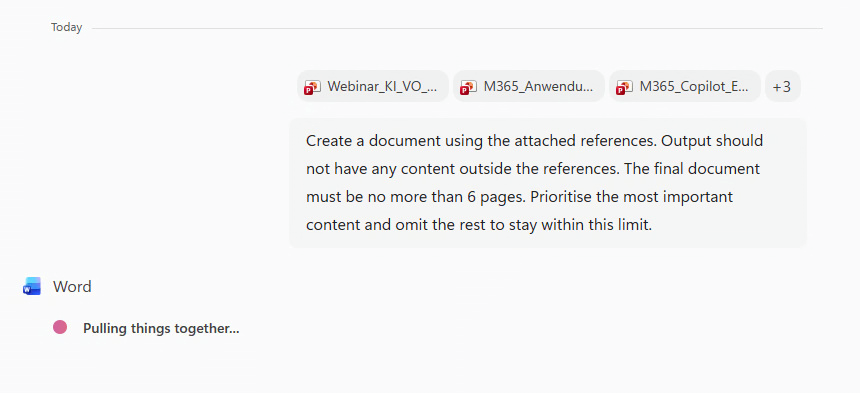
The process is deliberately short: pick a format, and Copilot starts straight away. You don’t write a prompt — Copilot uses a fixed one instead, which you can read in the chat as it runs. It sets two conditions that shape the draft: nothing may appear that isn’t in your references, and the length is capped at six pages for a document, three sheets for a spreadsheet and six slides for a presentation. None of that can be changed before you start.

Afterwards it can be, though how much depends on the format. With Presentation and Spreadsheet, the agent stays available in the notebook: ask for extra slides or another sheet and you’ll get them, cap or no cap. With Document, the session ends once the draft is finished and you carry on in Word. That difference matters more than it first appears. Inside the notebook, Copilot still has your references and can pull further material from them. In Word it starts without that connection, and you’d have to supply the sources again yourself.

  1. Open a notebook that already holds the references you want to use. Those sources, and only those, feed into the draft.
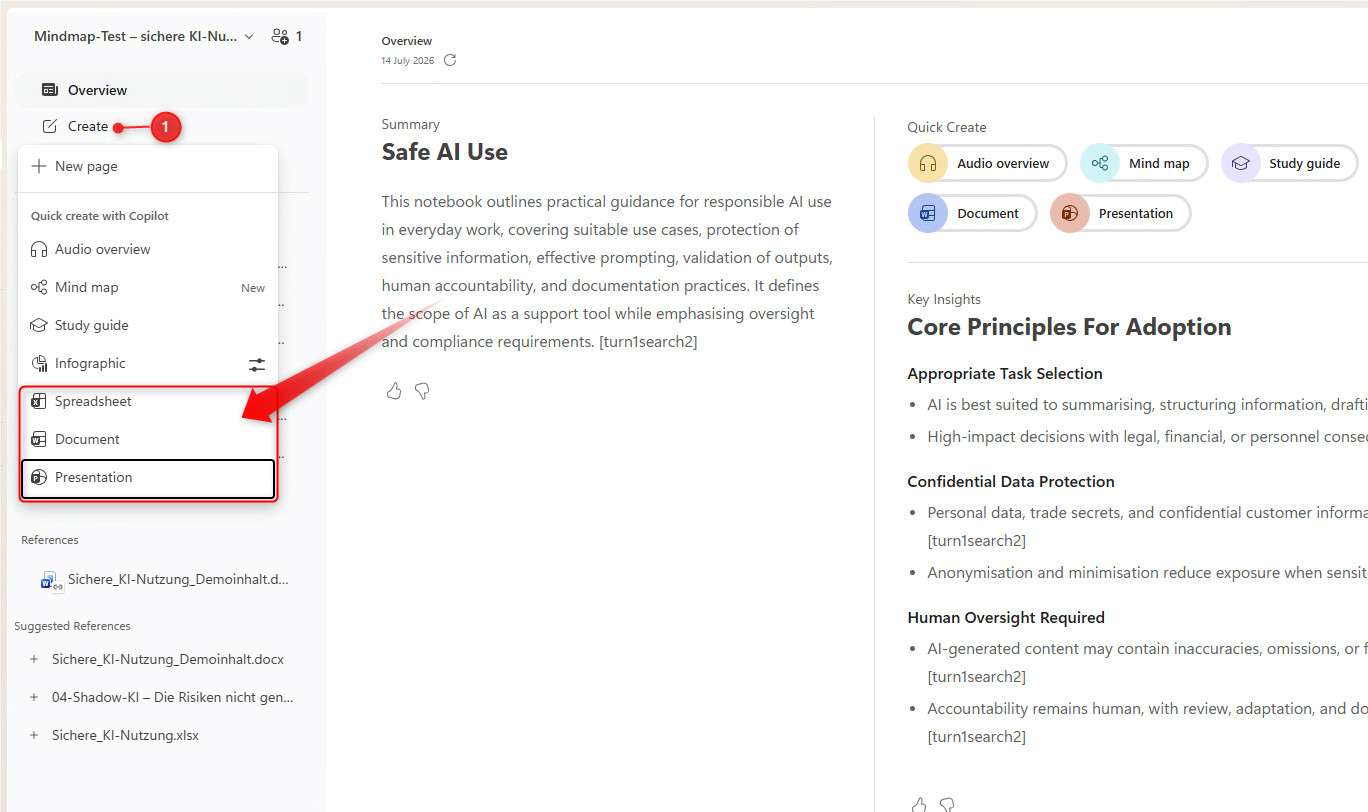
  2. Click Create in the left pane and choose a format under Quick create with Copilot: Document, Spreadsheet or Presentation. The same buttons appear on the Overview page under Quick Create.
  3. Copilot begins immediately. The prompt it uses appears in the chat, with the relevant agent working underneath it — Word, in the case of a document.
  4. Open the finished file in the relevant app to work on it. With Presentation and Spreadsheet, you can also view the draft in the notebook itself and adjust it there via chat.
  • Your references and nothing else: Copilot won’t fill gaps from general knowledge. If something isn’t in your sources it won’t be in the draft — that’s the instruction, not a failure.
  • How long the first draft runs: Six pages, three sheets, six slides. With a lot of reference material, Copilot cuts hard and decides for itself what goes.
  • What you can change depends on the format: Presentation and Spreadsheet stay editable in the notebook, and you can push past the original limit. Document doesn’t — that session ends with the draft, and further changes happen in Word, via Edit with Copilot for instance.
  • Spreadsheets have a catch: Our references were plain prose, and prose is what turned up in the cells — not a spreadsheet you could work with. Without usable figures in the sources, there’s nothing to build an analysis from.
  • What you’ll need: The feature depends on the Word, Excel and PowerPoint agents being available in your organisation. If the buttons aren’t there, that may come down to the rollout or to your organisation’s settings.
  • Your references decide the first draft: Add the sources you want represented and clear out anything you don’t, before you click. The narrowing you’d normally do in a prompt happens here, in the selection.
  • Fewer sources, sharper draft: The more material sits in the notebook, the harder Copilot has to cut — and the less say you have in what survives. For a specific topic, a dedicated notebook beats one large collection.
  • Give it numbers if you want analysis: A spreadsheet worth having needs figures somewhere in the sources, whether in a table, a list or the body text. Purely descriptive references produce a spreadsheet full of description.
  • Refine in the notebook while you still can: With Presentation and Spreadsheet, it pays to make changes before you leave — Copilot still has your references there and can draw on them. Once you’re in Word, that connection is gone.

The feature handles exactly one step, and handles it reliably: turning collected material into a complete first draft. Having no prompt to write makes it about as easy to start as it could be, but the preparation moves upstream instead — what sits in the notebook is what you get. What happens next comes down to format. Presentation and Spreadsheet can be reworked in the notebook; Document can only be reworked in Word. That’s the distinction worth remembering, because in the notebook Copilot is still working with your references, and in Word it isn’t.