
PowerPoint: Copilot uses brand images from multiple SharePoint libraries

With enterprise images from multiple SharePoint libraries, Copilot in PowerPoint can now edit slides to sit closer to your brand, instead of falling back on generic stock visuals. It’s especially useful for teams that regularly refine presentations with approved campaign, product or brand imagery. We’ve summarised what’s documented, how access works and what to watch for when it comes to image sources.

 

ValueAdded value: Easy on-brand slides
Use caseUse case: creating or editing slides
Reading timeReading time:
4 minutes
DifficultyDifficulty: Medium

This feature sits squarely within editing in Copilot in PowerPoint: when creating or reworking slides, Copilot can draw on approved enterprise images from SharePoint image libraries. We see the biggest benefit where several teams maintain their own image collections — regions, product areas or campaigns, for instance. The prerequisite is that the image libraries have been set up as Organizational Asset Libraries and made available for Brand Images in PowerPoint. Data protection and control remain tied to the shared SharePoint libraries: Copilot can only work with content that has been provisioned accordingly.

Prerequisite: your administrators must set up the brand-image libraries as Organizational Asset Libraries and make them available to Copilot in PowerPoint — only then are the approved brand images available. Admin guides: Enable brand images for PowerPoint and Connect your image library to Copilot.

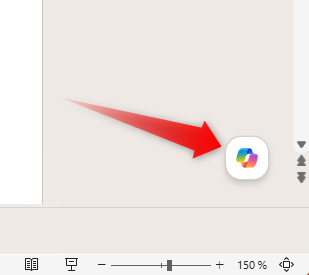
  1. Open your presentation in PowerPoint for Windows, Mac or the web and start Copilot Chat via the Copilot icon in the bottom right or from the ribbon.
  2. Ask Copilot Chat to create a slide or presentation, and turn on the Only use images from my organization option if you want it to use only your approved brand images from the Organizational Asset Libraries.

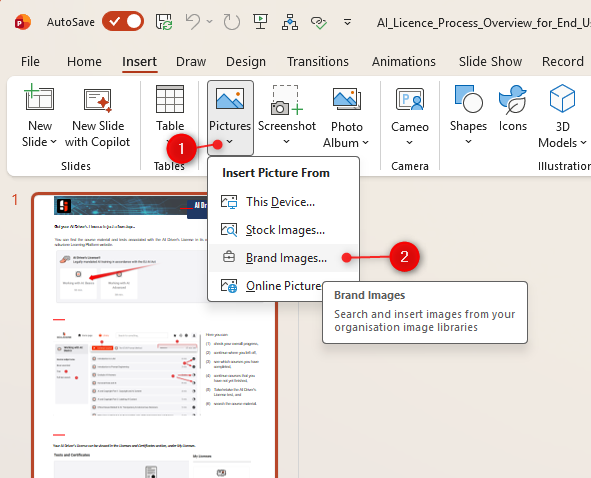
Alternatively, you can insert a brand image manually — via Insert > Pictures > Brand Images, then select the appropriate organizational asset library. This was already possible before this update and remains useful as a fallback when Copilot doesn’t land on the image you want.
  • Check image rights: the feature makes approved enterprise images easier to use; even so, clarify which visuals are cleared for external presentations, client meetings or campaigns.
  • Maintain metadata: Copilot benefits from well-described images. Clear tags for product, region, audience or campaign help it pick the right one.
  • Separate libraries deliberately: multiple SharePoint image libraries are practical but can also become hard to keep track of. Bear in mind two Microsoft constraints: all Organizational Asset Libraries must sit on the same SharePoint site, and a maximum of 30 per organisation is allowed. We recommend clear ownership per library.
  • Check the result: after editing, make sure the image, context and brand effect fit together. With similar visuals in particular, Copilot may make a formally correct but contextually unsuitable choice.
  • Choose libraries by working situation: separate product images, campaign visuals and corporate visuals, for instance. Copilot finds suitable visuals faster when the image source is clearly scoped.
  • Write prompts with image context: don’t just write “insert an image” — name the subject, the use and the audience: “Rework the title slide with an approved brand image for a B2B sales presentation.”
  • Test metadata before rollout: set five typical slide requests and check whether Copilot suggests suitable images from the libraries. A small test quickly shows which tags are missing.
  • Use manual selection as a fallback: if Copilot doesn’t hit the right visual, go straight to the library via Insert > Pictures > Brand Images. That keeps the slide on-brand regardless.

Using enterprise images from multiple SharePoint image libraries makes editing with Copilot in PowerPoint noticeably more usable in everyday presentation work. What stands out for us: teams no longer have to laboriously hunt down on-brand images, but can pull approved collections straight into the editing flow. The practical value stands or falls with the quality of the libraries — good images, clear tags, clean ownership. As a next step, a small hands-on test with three typical slides is worthwhile: title slide, product slide, customer slide. If Copilot finds the right visuals there, the feature is a very tangible gain for anyone who regularly refines presentations.