


The “Explain this formula” function in Microsoft Copilot for Excel helps you understand even the most complex formulas. Instead of struggling through nested functions and references or consulting Google, Copilot in Excel provides you with an understandable and contextualized step-by-step explanation. This function is particularly valuable if you need to reproduce external Excel files or complex formulas from colleagues, want to look through older calculations again or want to expand your Excel knowledge.
 Added value: Time-saving
  Scenario: Data processing
  Reading time: 3 minutes
  Difficulty: Beginners
How it works
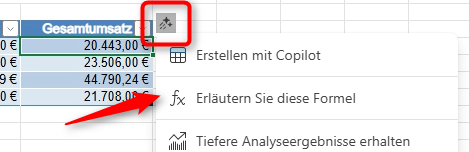
- Click in the desired cell
- Click the AI icon
- Select the “Explain this formula” command
Test
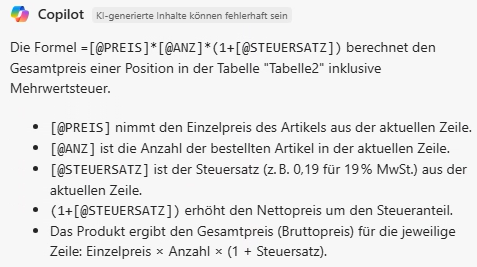
We have repeatedly applied the function to very different data and formulas. It took Copilot about 30 seconds to explain a formula.
Copilot goes through the formula step by step and explains:
- Which cells/rows/columns are used
- Which calculations are carried out
- What the final result means in the context of the entire data set
General evaluation
Tips
- Give tables meaningful names, do not keep the default names Table1, Table2 etc., then the explanations will be even easier to understand. Copilot uses the stored names for its explanations.
- If you do not know a formula and it is not too long or nested, it is better to use the Internet search (e.g. “Excel SUMIF”). This way you are usually faster, as Copilot also needs time to explain the formula.