


From Excel to PowerPoint – Referencing Excel365 Files in M365 Copilot for PowerPoint365
Microsoft365 Copilot in PowerPoint365 allows you to create presentations using Excel files as a reference. The goal is to support the presentation creation process by transferring content from Excel data into slide structures and embedding it within a presentation context. This can reduce the initial workload and provide a foundation for further editing. However, we caution against expecting too much from this feature.

Added value: Productivity
Scenario: Data Processing
Reading time: 4 minutes
Difficulty: Beginner
Evaluation of the function
How does the function perform?
How It Works
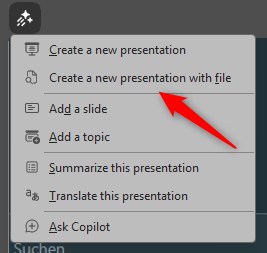
- Click the Copilot icon in PowerPoint365.
- Select the command Create a new presentation with file.
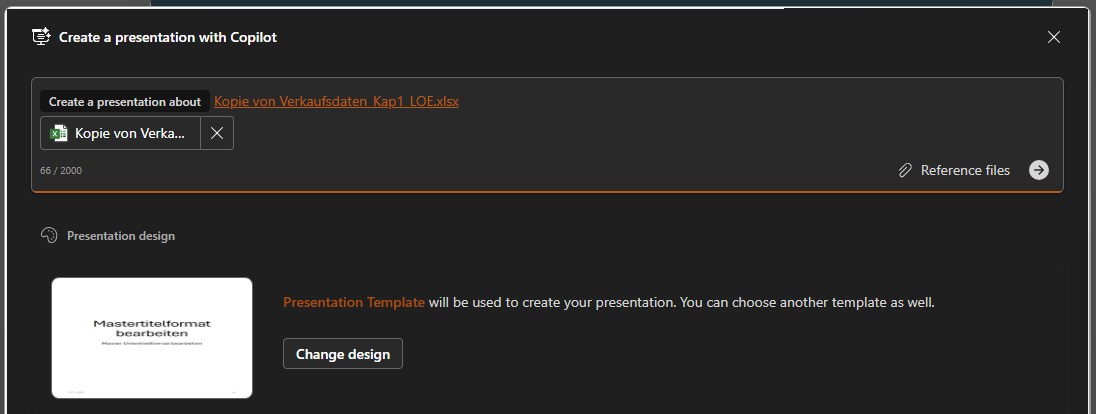
- After the slash, type the file name and/or select it from the suggestion list.
- Click the arrow icon to submit.
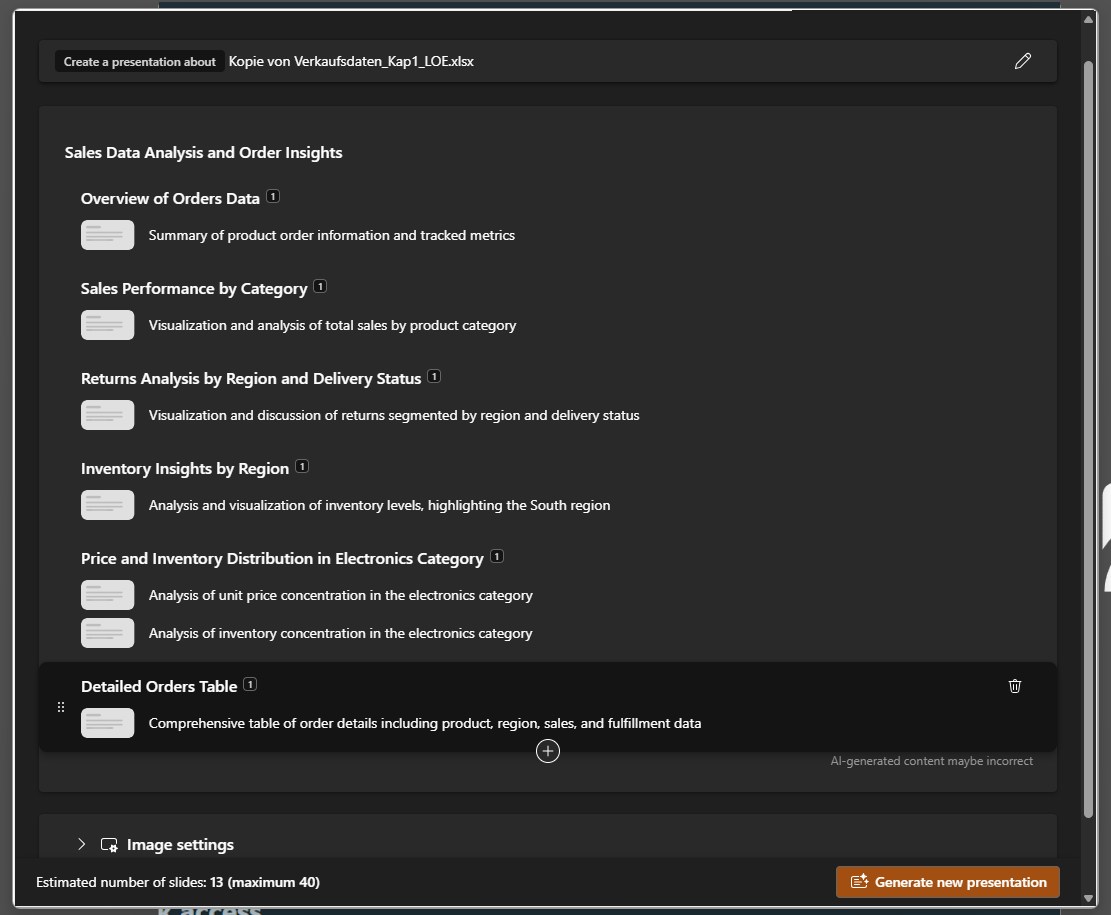
- Optional: Adjust content or sections.
- Click Generate slides.
Test 1
We tested the feature for integrating Excel content into PowerPoint slides using Copilot in the web version, as it is not yet available in the desktop app in our tenant.
The basic function — transferring an Excel table to a slide via file reference — worked reliably. The table was inserted accurately and well formatted. However, the same task can be done more quickly using copy & paste or manual import.
Test 2
The real added value should come from the intelligent processing of data — through targeted analysis and selection of relevant sections.
We expanded the prompt accordingly, but the result was disappointing: Copilot pulled in incorrect data, ignored instructions, and analyzed content that hadn’t been requested. The logic behind the analysis remained unclear.
Copilot appears to follow a fixed pattern that responds only minimally to individual requirements.
Our recommendation: Perform data analysis directly in Excel (e.g., with Python) before integrating it into PowerPoint.
Test 3
The integration into the presentation context is also unconvincing. Slide titles often read like alternative text, content is misaligned or missing altogether. Charts receive English titles, explanations end up on separate slides, and terms like “field” from Excel are used inappropriately. In some cases, slides are created that were never requested. Typical of Copilot in PowerPoint are weak layouts and a certain inconsistency. Fortunately, drafts can be reviewed for content before generation — given these shortcomings, that’s absolutely necessary.
Conclusion
Integrating Excel files into Copilot for PowerPoint is a step toward more efficient workflows in Microsoft 365.
The core function works well, but clear weaknesses emerge with more complex tasks such as data analysis or embedding content into a predefined presentation structure. Copilot often analyzes information that wasn’t requested and responds poorly to specific instructions. The visual output is frequently unconvincing.