

Copilot for Teams: The Interpreter

M365 Copilot Interpreter – Overcoming Language Barriers

The Interpreter feature in M365 Copilot for Teams provides real-time speech-to-speech translation during live meetings. An AI voice interprets foreign-language audio directly and overlays it—similar to what you hear in TV interviews. This allows all participants to speak and listen in their preferred language, reducing misunderstandings and promoting focused, inclusive collaboration.

Added value: communication barriers        Scenario: Communication    Reading time: 5 minutes      Difficulty: Beginner

Evaluation of the function

User-friendly
Takes some getting used to. 40%
Time-saving
Helps prevent miscommunication but may extend the conversation. 60%
Added value
More natural communication experience. 100%
Potential
Global communication. 100%

How does the function perform?

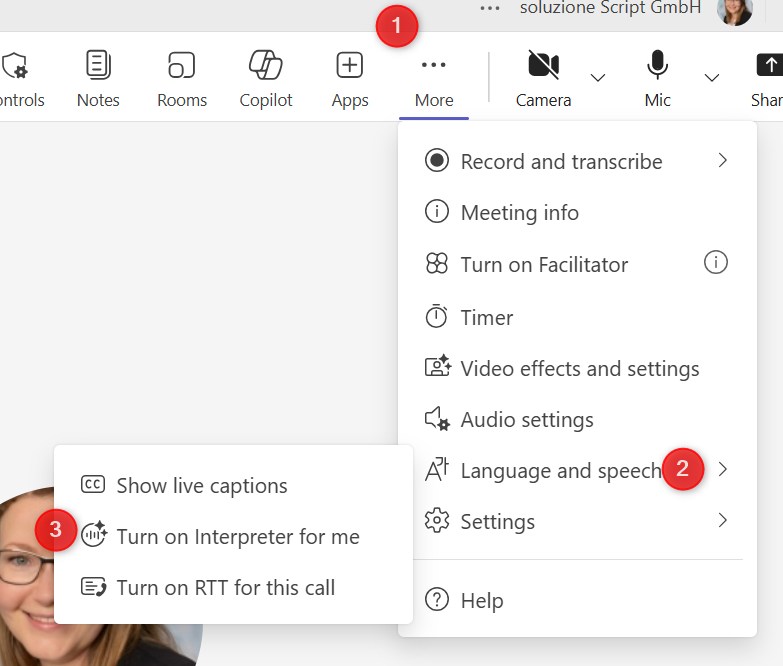
  • Click the More (three dots) menu in the Teams control bar.
  • Select Language and speech.
  • Click Turn on Interpreter for me.
 
  • Set your desired  language.

  • Start the Interpreter by clicking Turn on.
  • The feature is currently not available for spontaneous meetings or calls.
  • At this time, only nine languages are supported.

Once you’ve enabled the translation feature, M365 Copilot for Teams takes on the role of an interpreter: when someone speaks in a different language, their original audio is automatically lowered in volume. Instead, you’ll hear an AI voice that delivers the message in your preferred language — much like the voiceover style used in TV interviews.

The translation occurs sentence by sentence with a slight delay. The AI voice starts speaking only after a full sentence or phrase is completed and the speaker pauses briefly. At the same time, you’ll see a visual indicator showing when the translation is being spoken. This helps speakers make deliberate pauses so the AI can “finish speaking,” ensuring smoother and clearer communication.

  • Frequent translation gaps and errors, especially when speakers talk softly or unclearly.
  • No verification option: participants often can’t tell whether the translation was accurate.
  • A combined view with both audio and text would greatly improve comprehension. However, using live captions and the interpreter feature simultaneously is not recommended — both systems produce different content and can interfere with each other.
  • Speaking slowly with pauses improves comprehension.
  • Pauses are essential for AI processing — though they can significantly slow down the conversation.
  • Speakers should stay aware that their speech is being translated, adjust their speaking pace accordingly, and keep an eye on the interpreter icon.

In international meetings, English is often used as a third language. Problems arise when participants speak little or no English — or have a strong accent. In such cases, real-time translation provides a valuable alternative.

Less suitable for interactive discussions: spontaneous comments or fast back-and-forth exchanges are difficult for the AI to process and can result in incorrect or missing translations.

The feature works best for presentations or meetings with a single speaker, such as webinars or lectures.

The interpreter feature offers impressively natural speech output and can effectively bridge language barriers, but it’s not ideal for every type of conversation. It struggles in highly interactive meetings or fast-paced discussions. However, with a bit of practice and adjusted speaking habits, its full potential can be unlocked.