

=COPILOT() in Excel365

Naturally speak, work smarter: How =COPILOT() helps you in Excel

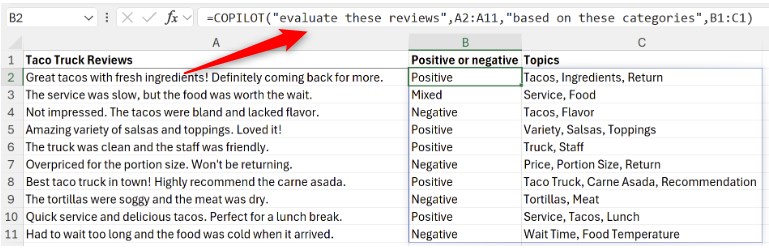
The =COPILOT() function allows you to integrate artificial intelligence directly into your spreadsheet. Instead of processing or generating data yourself — or using the traditional Copilot pane — you simply enter a natural-language instruction or question into any cell, optionally referencing other cells. The AI delivers the result directly into your sheet.

What makes it special:
Results automatically update whenever your underlying data changes.

However:
The function isn’t suitable for every task — especially not for numerical calculations. It’s mainly designed for text-based tasks.

Added value: Time savings    Scenario: Information Analysis   Reading time: 5 minutes      Difficulty: Advanced

Evaluation of the function

User-friendly
Natural-language phrasing; formula syntax still needs to be learned. 90%
Time-saving
Seamless integration, no copy & paste needed. 100%
Added value
New possibilities for text processing in Excel365. 100%
Potential
Fortschrittliche Textdatenverarbeitung, Integration externer Daten noch offen. 90%

How does the function perform?

  • The =COPILOT() function is currently being rolled out only to users in the Beta Channel with an active Microsoft 365 Copilot license. That’s why we haven’t been able to test it ourselves yet — but we will as soon as it becomes available!
  • The function will also be available soon for Excel on the web through the Frontier program.

  • Refer clearly to cell ranges: Specify which cells, columns, or rows should be analyzed—and where the result should appear.
  • Define the output format: Indicate whether you want a list, a table with headers, or another structure.
  • Use clear action verbs: Choose terms like summarize, categorize, or sort to make your intent clear.
  • Provide style or examples: If you want a specific format or tone, include an example in the prompt or reference one.
  • Import external data first: =COPILOT() can only work with data in the current workbook—import it if necessary.

Here are some examples of everyday tasks where the function is helpful:

  • Feedback analysis: Visualize ratings graphically (thumbs up/down)
  • Summarize user comments
  • Provide explanations for data in a report
  • Categorize support requests
  • Generate product descriptions
  • Create a to-do list from task descriptions
  • Extract metadata from product descriptions
  • Create a campaign plan with a timeline
  • It works exclusively with data in the current Excel workbook.
  • No information is retrieved from the internet, other files, or internal company sources such as SharePoint, OneDrive, or Teams.
  • COPILOT does not replace native Excel functions like SUM, IF, XLOOKUP, etc.
  • The function is not suitable for numerical calculations or precise computations.
  • This limitation is crucial—although the function is embedded in Excel, it does not behave like a traditional formula, but rather as an AI-powered text generator.

Data Privacy and Accuracy Disclaimer:

  • Microsoft emphasizes that data processed via the =COPILOT() function is not used to train or improve the underlying AI models. Your inputs remain confidential and are used solely to generate the requested output.
  • At the same time, the function is not suitable for tasks requiring absolute accuracy or reproducibility.
  • Human review of AI-generated content is essential, especially when dealing with sensitive data or critical decisions.

The launch of the =COPILOT() function marks a significant step forward in the evolution of spreadsheets—with a clear focus: text instead of numbers. It democratizes access to AI-powered features, enabling users to analyze, structure, and generate content—directly within the worksheet.

However, anyone relying on precise calculations, external data sources, or company-wide knowledge should continue using traditional Excel functions or specialized tools. =COPILOT() is not a replacement for formulas—it’s an intelligent assistant for text-based tasks.

Try it out—and discover how Excel suddenly understands entirely new things.