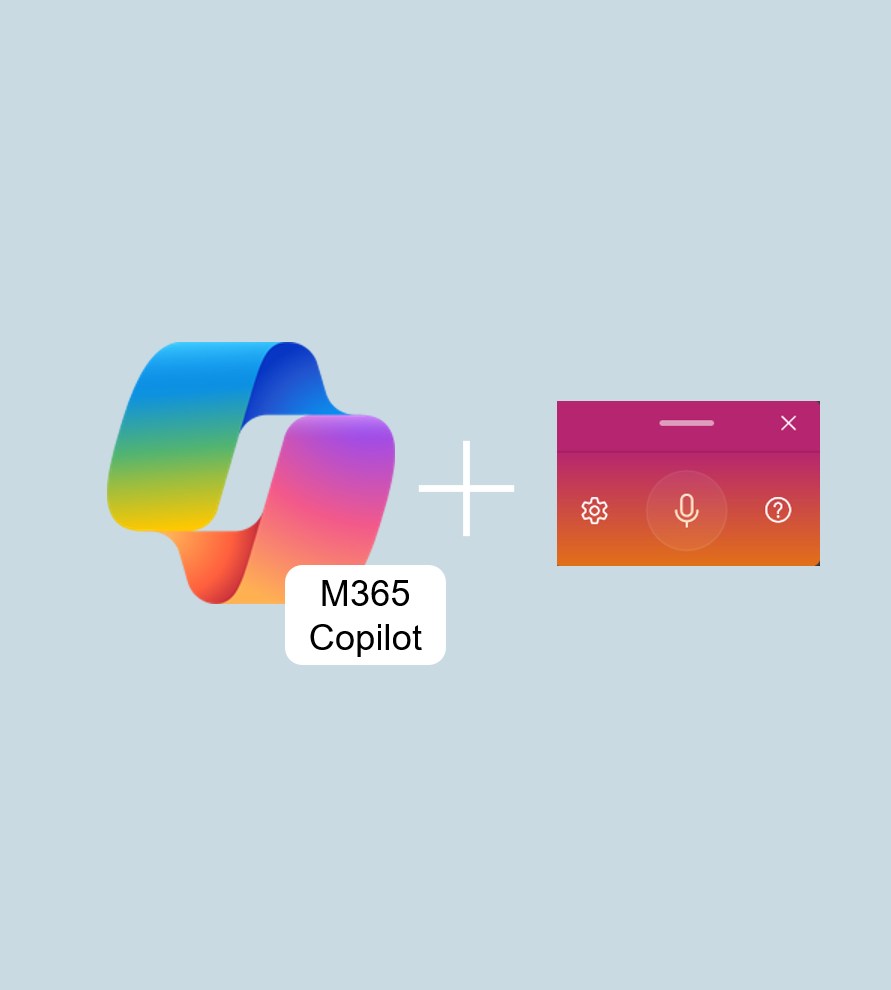


Whether you’re using Word 365, Outlook 365, PowerPoint 365, or the OneNote desktop app – all applications now include an integrated dictation feature for M365 Copilot. With the Windows 11 dictation tool, you can speak your prompts to Copilot in Teams or the Copilot app instead of typing them – saving time and making your interaction with AI far more intuitive.
 Added value: Time savings
  Scenario: Effective Prompting
  Reading time: 4 minutes
  Difficulty: Beginner
How it works
Test 1: Dictating prompts in a 1:1 Teams chat
When the Windows 11 dictation feature starts, a visual indicator appears showing that the tool is active and listening.
We ask Copilot Pro to find a document that was shared earlier in the chat.
Prompt: “I’ve conducted several Copilot tests with Person A. Please find the test report on ‘Agents’ for me.”
Result: Copilot quickly locates the document and provides a direct link to open it. Wow — that was fast. Impressive.
Test 2: Using the dictation feature in the Microsoft 365 Copilot app
We open the Microsoft 365 Copilot app on our device, click into the text field, and activate the dictation feature. Copilot Pro is supposed to help us draft a project communication based on a document already shared in the chat. Instead of typing, we dictate the task.
Prompt:
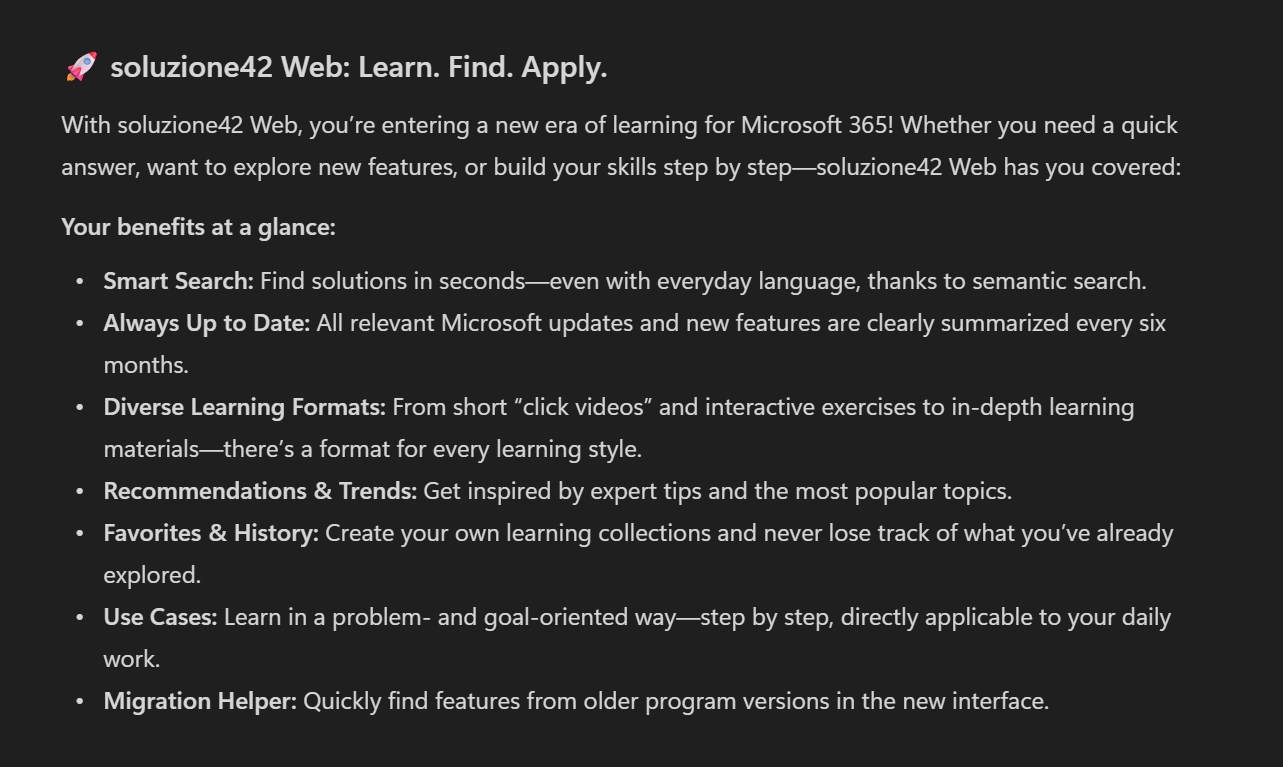
“soluzione42 Web QuickGuide (de).pdf — The attached soluzione42 Web Guide serves as the basis for a customer communication I need to prepare. Please analyze the document’s content and help me draft an announcement text to be published on my client’s intranet. The target audience are end users who should quickly grasp the key points of soluzione42 Web. The tone should be engaging and reflect modern learning. Please make a proposal.”
Result:
Copilot analyzed the document’s content and generated a well-structured, relevant draft. The structure is clear, and the key points from the QuickGuide were effectively condensed. We’re happy with the result — the greeting wasn’t necessary for our communication. We even completed the final edits using the Windows 11 dictation feature.