


With Custom Instructions, M365 Copilot works exactly the way you want it to
With Custom Instructions, you can set up personal rules and guidelines in M365 Copilot. This tells the AI exactly how to format, phrase, and respond to your requests — similar to the Memory feature.
A particularly practical scenario is creating shortcuts for frequently used commands, allowing you to trigger complex tasks instantly. For example, typing “ZF” could replace the full instruction “Summarize the following text in bullet points and add a conclusion.” This saves both time and typing effort.

Added value: Time savings
Scenario: Personalized AI usage
Reading time: 3.5 minutes
Difficulty: Beginner
Evaluation of the function
How does the function perform?
How it works
- On the Copilot homepage, click the three-dot menu in the upper-right corner.
- Open Settings.

- You’ll find the Custom Instruction feature under the menu item Personalization.

- Enter your preferred instructions or shortcuts in the text field — for example, in this format:
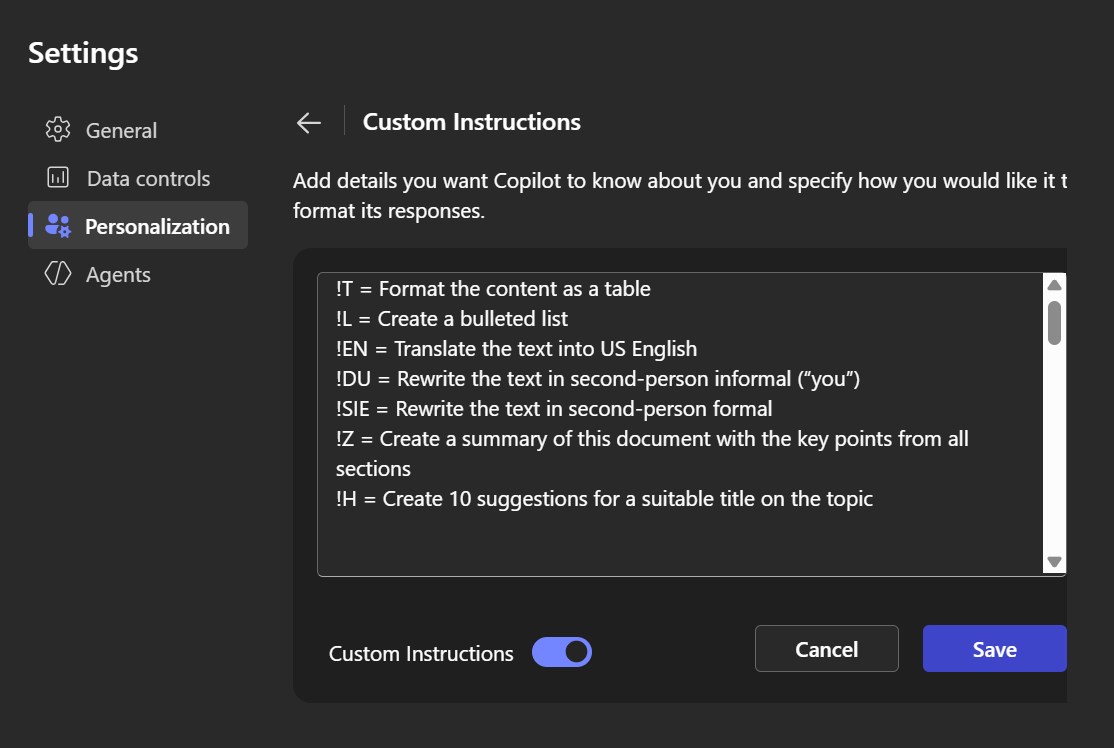
Test
We tested the feature extensively — here’s our conclusion:
- Copilot reliably recognizes shortcuts — even those that might look like typos — and executes them correctly. The generated responses align perfectly with the desired format and tone.
- Variables in shortcuts? No problem. Copilot also understands dynamic inputs.
- Shortcuts also function seamlessly when used with documents.
- Keyboard shortcuts significantly reduce prompt length and make workflows more efficient.
- Flexible customization: By simply adjusting your saved instructions, Copilot can be continuously adapted to new work habits.
- Team standards made easy: If your team follows consistent coding or writing guidelines, Copilot can enforce them too — acting almost like an integrated team member.
Overall Evaluation
- Copilot reliably follows the preferences stored in Memory — even across multiple chats.
- You no longer need to restate context or recurring instructions, which speeds up interactions.
- Popular use cases include defining writing style preferences, preferred formats, personal abbreviation lists, or even a “blacklist” for specific terms.
- Memory also allows Copilot to access relevant background information, such as team member names or project details.
- Important: The prompt still has the greatest impact on the output. For example, even users with a creative-style memory setup can receive very structured, factual results — depending on how the prompt is phrased.
Difference from “Custom Instructions”
We think these features are fantastic, so we asked Copilot to explain how Memory differs from Custom Instructions.
Understanding this distinction is key to effectively personalizing your AI experience.
Copilot provided the following comparison table:
Memory (Long-Term Memory)
- Stores facts about you that remain relevant over time (e.g., role, work style, interests)
- Includes details like your position, company, team, and responsibilities
- Keeps track of tools you regularly use (e.g., Copilot, Microsoft 365)
- Remembers topics you’re currently or consistently focused on in your job
- Recognizes people you frequently collaborate with
- Retains recurring goals or ongoing projects
- Applies your preferences for language, tone, and structure
Custom Instructions (Behavior & Style)
- Define how the AI should write, think, and communicate
- Specify your preferred tone (e.g., clear, direct, no overly flattering “yes-man” style)
- Outline the types of tasks you plan to assign to the AI (e.g., text optimization, brainstorming, concept development)
- Describe how you want Copilot to collaborate with you or what role it should play (e.g., work bestie, co-creator, sparring partner)
- Indicate what matters most to you (e.g., no word repetition, clear structure, concise phrasing)
Conclusion
The Custom Instructions feature in Copilot provides an easy way to tailor the AI assistant to your personal work style and recurring needs. Especially when combined with shortcuts, it can significantly speed up and standardize workflows. While it doesn’t replace Memory, it perfectly complements it—helping you achieve faster, more consistent, and well-formatted results.