


Until now, Copilot Pro could summarize and analyze emails, generate meetings with agendas, and even provide coaching on writing style. The new feature now allows you to ask Copilot Pro directly for suitable meeting time suggestions — including time slots for multiple participants. All it takes is a simple prompt in the Copilot section of Outlook. We tested the feature for you and reveal in this article when it’s worth using Copilot for scheduling — and when it’s not.
 Added value: Time savings
  Scenario: Scheduling Processing
  Reading time: 5 minutes
  Difficulty: Beginner
How it works
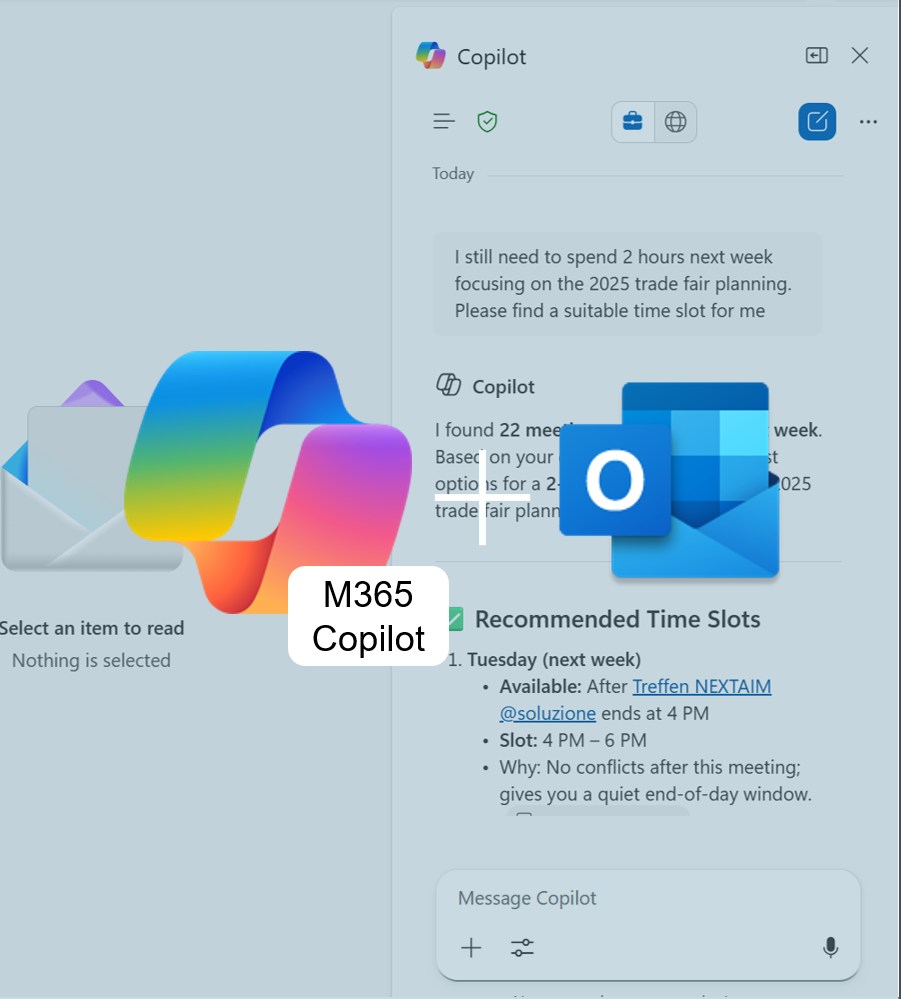
Test 1: Schedule focus time with M365 Copilot
Prompt: “I still need to spend 2 hours this week focusing on the 2025 trade fair planning. Please find a suitable time slot for me.”
Result: Copilot Pro suggested the earliest available time slots in the calendar.

Test 2: Schedule a meeting for two participants using Copilot Pro
Prompt: “Find a time slot for Bastian Ziegler, Nadja Schäfer and Frank Rodà, where we can discuss the customer service topics.”
Result: Copilot checks the calendars and suggests suitable time slots for the requested meeting.

We ask Copilot to book the slot for Friday, and it gives us the option to continue in Outlook.

Next, Copilot opens the meeting scheduling window in Outlook, where we can clearly see that one of the attendees is unavailable.